v0.9.0
guide / overview

wr guide

v0.9.0 overview docs/GUIDE.md

How to read and browse the web from your terminal with wr.

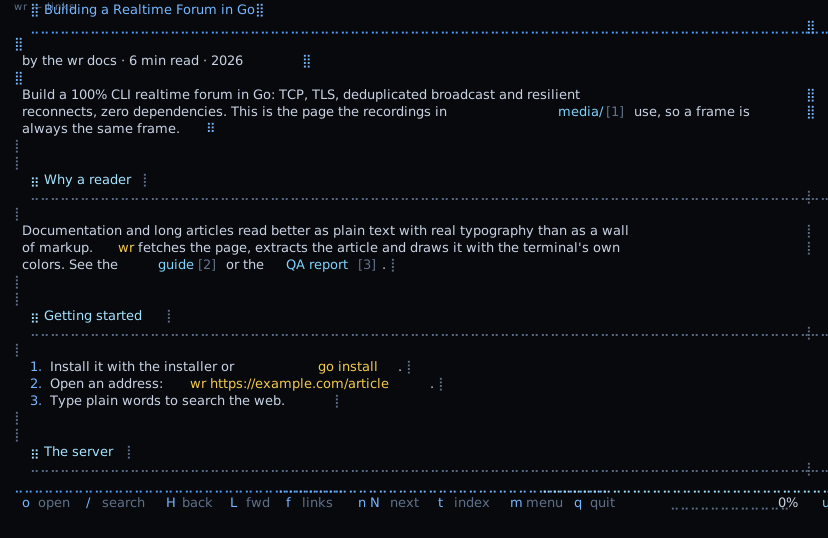
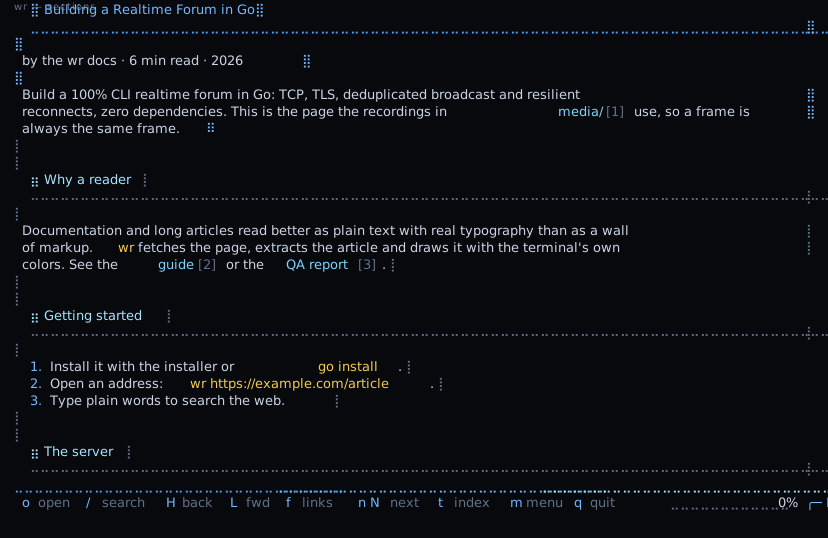
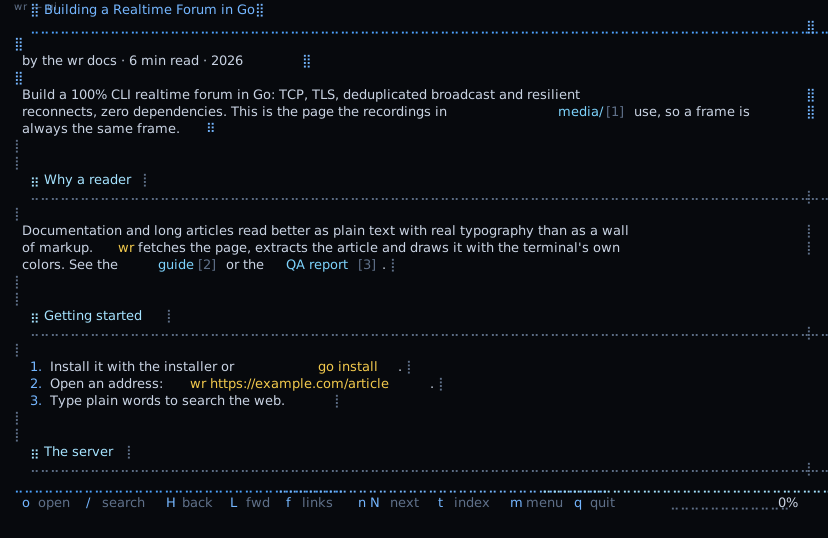
wr fetches a page, keeps the article, drops everything else and draws it in your terminal with your own colors — so it looks like part of your terminal, not like a website. It has no tabs, no sidebar and no ads: one page at a time, read with the keyboard. Pages that only exist once their JavaScript runs are rendered for you when a Chromium or Chrome is installed, and wr keeps itself up to date if you let it.

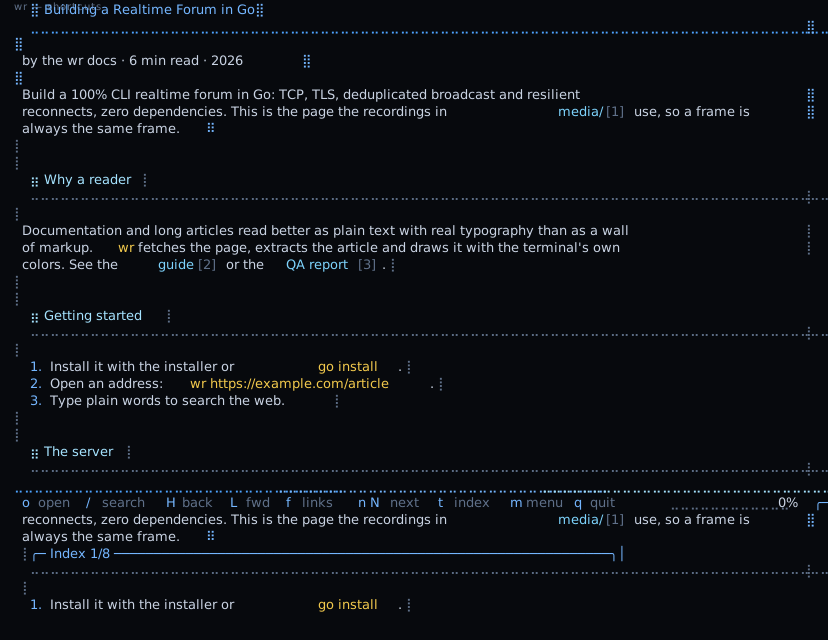
The thirty-second version: run wr, press o, type an address (or a question), press Enter. q quits. Everything else — links, history, bookmarks, search, settings — is reachable from the menu with m, and the footer always shows the keys you actually have.

If you learn better by doing, jump to Real use cases and come back for the details.
In this document21 pages
01

Start

Install:

02

The screen

The page is the article extracted from the website: menus, footers, ads

03

Reading a page

Scrolling is smooth: it glides to where you are going instead of jumping.

04

Following links

Three ways, use whichever you like:

05

Going back and forward

wr remembers the pages of your session like a browser does.

06

The address bar and searching the web

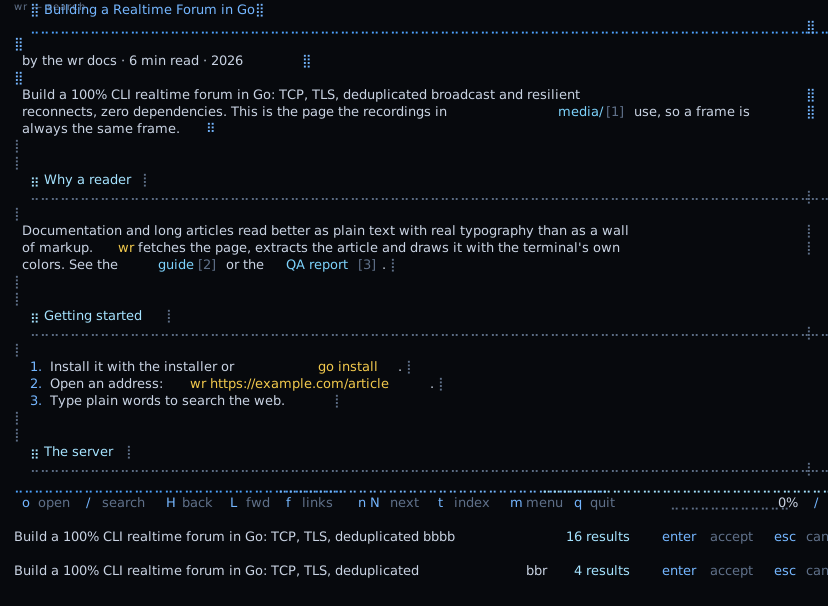
Press o, type, press Enter. The first row always shows what wr will do

07

History, bookmarks and the start page

History (v) lists the pages you visited, newest first, one line each with

08

Searching inside a page

Press / and start typing. The page highlights matches as you type and

09

Selecting and copying

With the mouse:

10

Make it yours

Press , (or open the menu with m and choose Settings).

11

Rebinding keys

Open the menu (m) and choose Keyboard shortcuts (also Settings → Other →

12

Local files, Markdown and other content

wr shows more than web pages:

13

Pages drawn by JavaScript

Some sites send an almost empty page and draw everything with JavaScript — the

14

Using it with other tools

Print instead of browse: wr URL | less -R prints the formatted page and

15

Real use cases

Ten situations you actually meet, with the exact keys.

16

Updating wr

The version you are running is in the title of the menu (m), on the start page

17

Keyboard quick reference

The default bindings, as shown by the menu → Keyboard shortcuts.

18

Configuration reference

Every key of ~/.config/wr/config.toml, with its default.

19

Environment variables

Variable What it does --- --- NOCOLOR, TERM=dumb the printed render (wr URL \ less) has no colors; the interactive reader always uses them COLUMNS wid…

20

Troubleshooting

Strange boxes instead of the little dots. Your font has no braille glyphs.

21

Where wr keeps things

(The config and state locations follow XDG_CONFIG_HOME and XDG_STATE_HOME

The UI, recordedscripts/capture.sh